Table of Contents
Cron expressions pack a schedule into five short fields, but a misplaced value can change when a job runs. The Cron Wizard helps you create an expression from a familiar schedule, decode a crontab line, and check the result before you use it on a server.
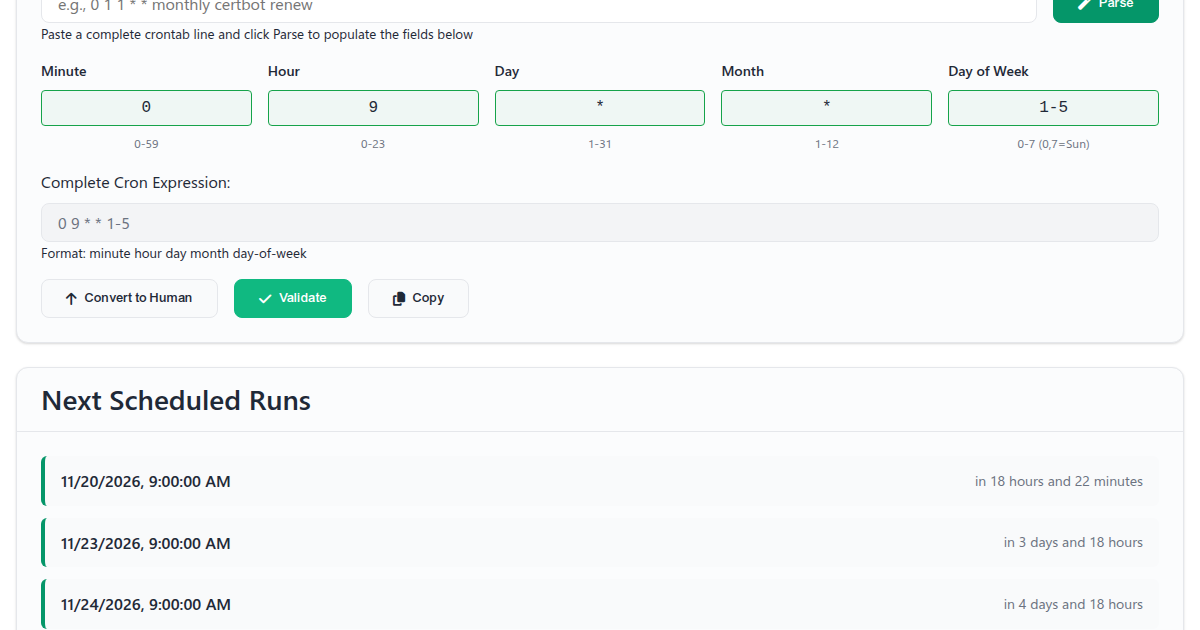
Start with a Schedule You Can Describe
Enter a common schedule such as Every Monday at 9 AM or Every 5 minutes, then choose Convert to Cron. The app recognizes common time, interval, weekday, date, and month patterns. It is designed for familiar schedule descriptions, not unrestricted natural-language requests.
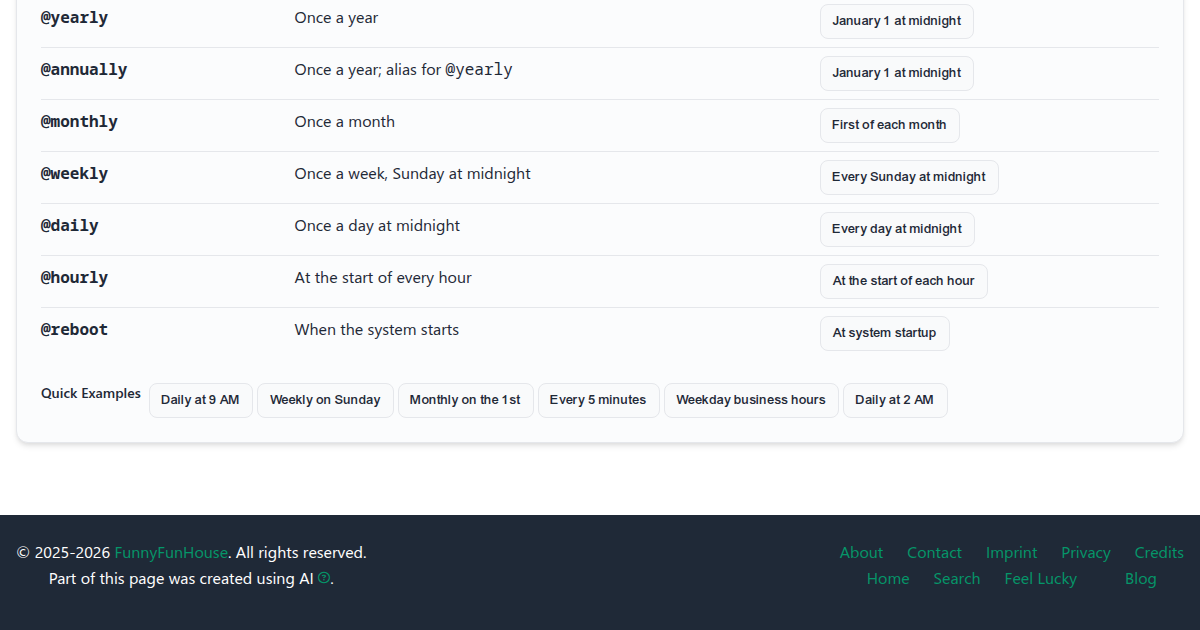
The Quick Examples buttons provide ready-made schedules. Selecting one fills the expression fields and the description, so you can start from an example and adjust it.
Build or Parse a Crontab Entry
You can edit each of the five fields directly:
- Minute: 0 through 59
- Hour: 0 through 23
- Day of month: 1 through 31
- Month: 1 through 12, or a month name such as
JAN - Day of week: 0 through 7, or a weekday name such as
MON; both 0 and 7 mean Sunday
The complete expression follows this order: minute hour day-of-month month day-of-week.
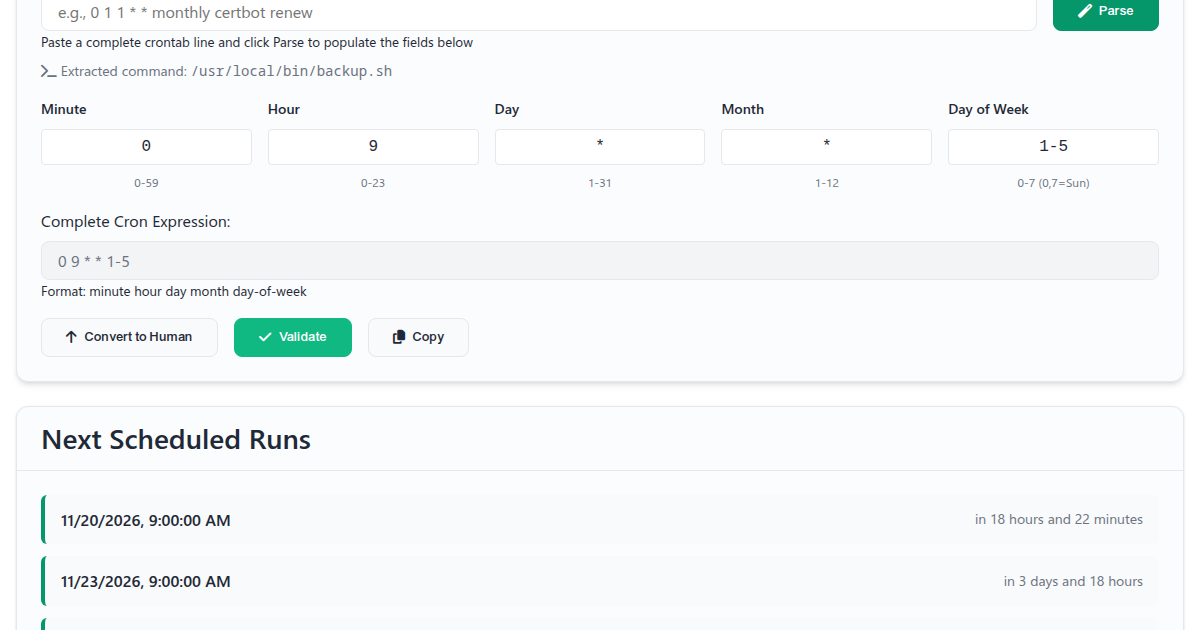
To inspect an existing entry, paste the complete line into Paste Complete Crontab String and choose Parse. The app separates the schedule from its command, letting you review when the job runs without confusing the command with a cron field.
Read the Operators and Special Schedules
The reference list explains each operator and special schedule beside a button that loads an example into the builder.
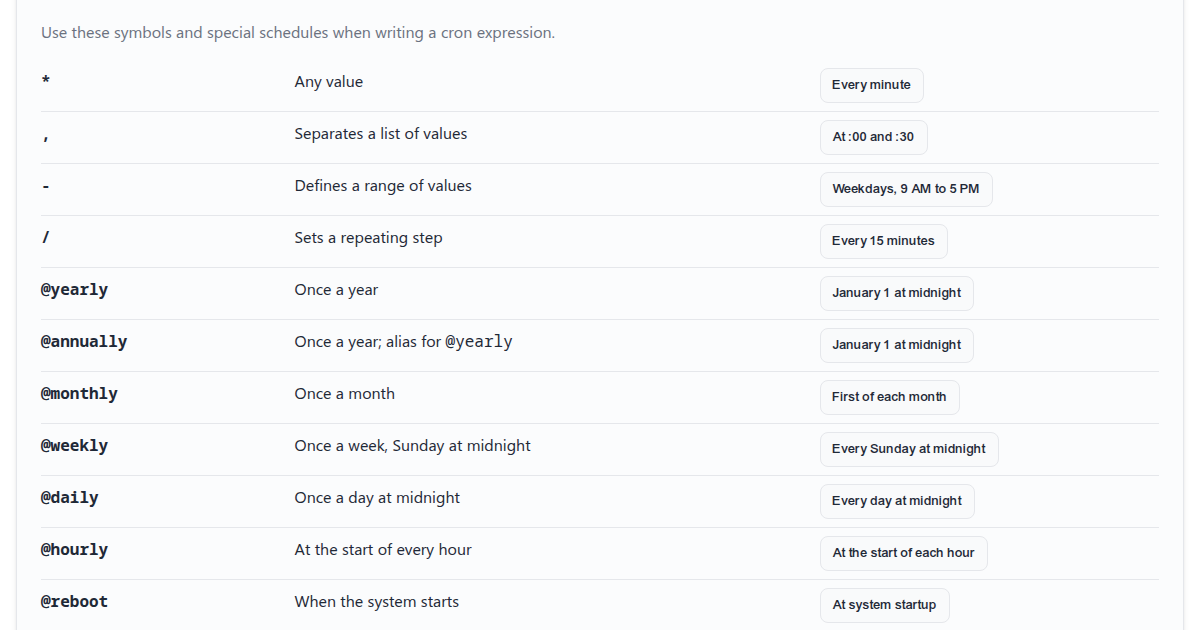
The four field operators are:
*means any value in that field.,separates a list, such as0,30for minutes 0 and 30.-defines a range, such as9-17for hours 9 through 17./sets a step, such as*/15for every 15 minutes.
Cron also has common shortcut schedules: @yearly and @annually mean once a year, @monthly once a month, @weekly once a week, @daily once a day, and @hourly at the start of each hour. These shortcuts are widely supported but are not part of the five-field format, so check that the cron implementation on your target system accepts them. @reboot is a startup event rather than a recurring time schedule.
Validate and Preview Before Installing
Choose Validate to check field values and see warnings about common mistakes. For example, when both day of month and day of week are specified, many cron implementations treat them as an OR condition rather than an AND condition. The warning makes that behavior easier to catch before copying the expression.
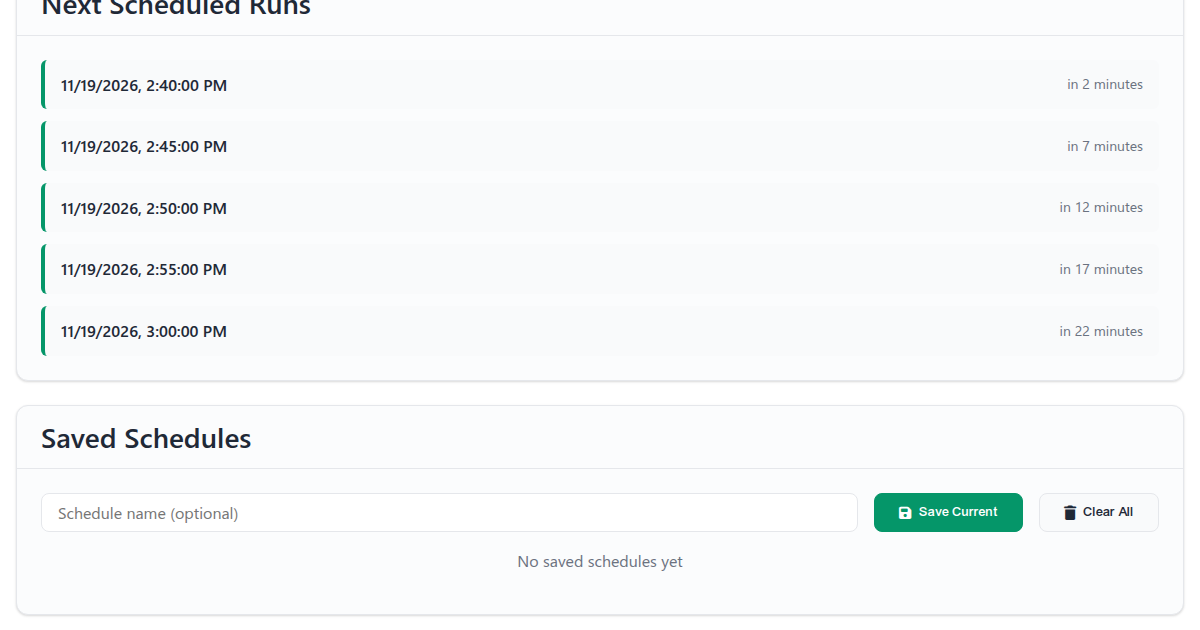
For recurring expressions, the app can show up to five upcoming run times. Its preview searches forward for about seven days; a valid but less frequent schedule may not appear in that window. @reboot has no recurring next run to preview. Treat the results as a planning aid and verify important schedules on the system that will run them.
Save Schedules for Later
Name a schedule and save it to load or remove it later. Saved schedules use the browser's local storage, so they stay in that browser profile rather than syncing to an account. The app retains up to 20 schedules.
Put the Expression on the Target System
The Cron Wizard builds and checks schedule text; it does not run commands or install cron jobs. After reviewing the expression, copy it into the appropriate crontab on the target machine. Use that system's command paths and environment, and check its cron documentation for support of any special schedule shortcut.
Make Your Next Schedule Easier
Use the Cron Wizard to translate a familiar schedule, parse a line you inherited, or learn what each part of an expression means. Validate the result and inspect the preview where it applies, then install the schedule in the right place for your system.